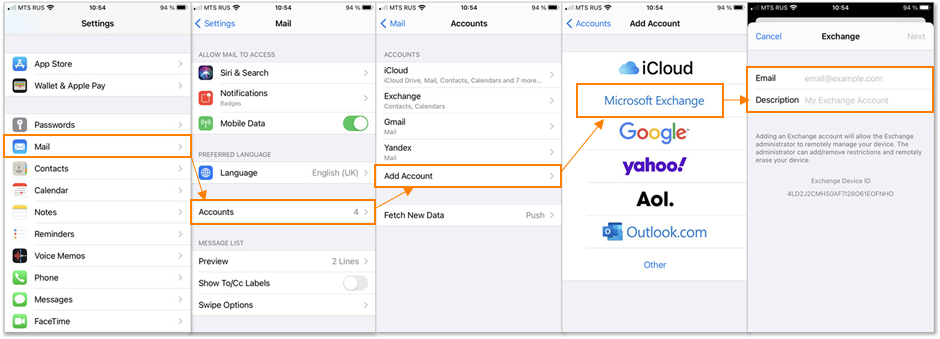
Adding an Exchange account on the iOS device:
- For iOS 14: Go To Settings > Mail > Accounts > Add Account. Note: To delete the account, go to Mail > Accounts > Delete Account
For iOS 12/13: Go To Settings > Passwords & Accounts > Add Account - On the Add Account screen, tap Microsoft Exchange.
- Enter the full email address in the Email field and enter All Saints Email in the description field. Click NEXT
- Click Sign In. Here you will enter your email password (the same as your computer/network password)
- Make sure Mail, Contacts, Calendars, Reminders, and Notes are checked (Green/Enabled).
- Click Mail so that you are back in Accounts and can now see the All Saints Email Account.
- Mail Days to Sync – Change this to what best reflects your needs. 1 Month is our recommendation.
- Go back to Mail.
- Signature – click signature at the bottom of this page. Here is where you can set, add, or change signatures
- Calendar – Under Settings, Calendar, Default Calendar, Please review to know which calendar is your default. Most people use their phones for personal and work, and it is important to review this page to ensure that when you add a new calendar appointment, it is going to which calendar by default.
- Contacts – Under Settings, Contacts, Default Account – Review this to make sure you know which account by default the contact will be stored.